When in your Outlook on the browser (outlook.office365.com) (Google Chrome, Edge, Firefox), the shared inboxes do not inherently pop up in your email page.
To see them, what you will want to do is:
1) Go to your email name on the lefthand side of the screen, right-click, and click on Add Shared Folder or Mailbox.
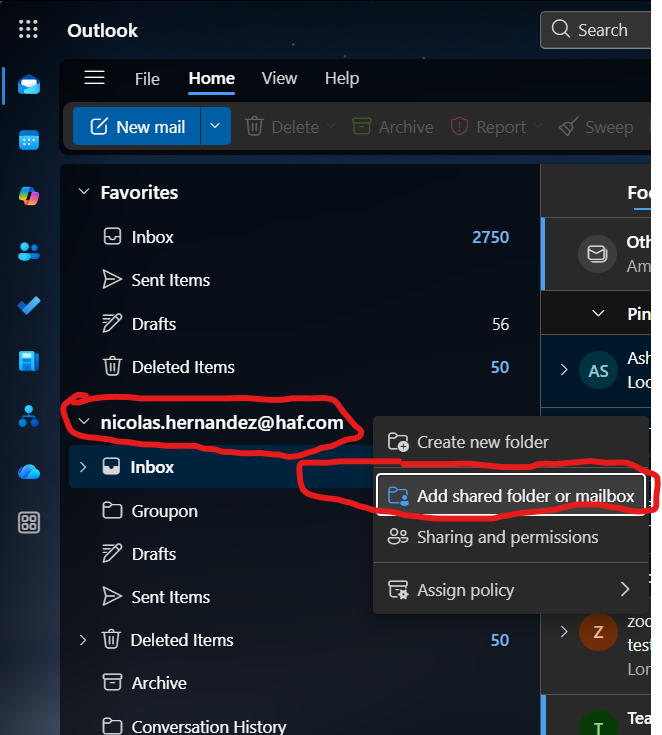
2) From there, a box will open up; type in the shared inbox address, and click the address you want access to and click continue:
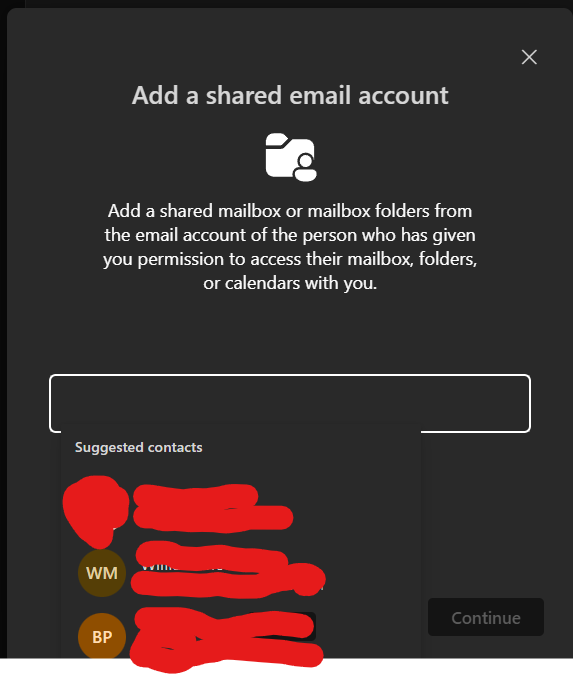
3) Once done, it will check if you have permission to access it - if you do, it will confirm that it has been added. You should then be able to see the newly added shared inbox on the bottom of your folder list on the left side of the Outlook screen.
Was this article helpful?
That’s Great!
Thank you for your feedback
Sorry! We couldn't be helpful
Thank you for your feedback
Feedback sent
We appreciate your effort and will try to fix the article