Latest Update as of 22 Aug 2026: Selected users in HAF and SM domains are assigned to remove labels. https://horizonairfreight.atlassian.net/browse/NAV-4763 Latest Update as of 10 Sept 2026: SaaS Box Label Removal PICs are below: Platonas Politis Andreas Chatzigiannis |
2. Order screen - Details tab - Boxes section at the bottom - Enable/Select "ID" from the column visibility on the right (3 vertical dots)
Added Rule: If the boxes are located in the following warehouses, approval from the PIC is required before proceeding with box label removal:
Amsterdam Warehouse: swiftmarine.ams.eu@evcargo.com, aldrich.banguilan@evcargo.com, and inventory.ams@swiftmarine.global
Singapore (SGM): pt-ops@swiftmarine.global and m.mohamed@swiftmarine.global
Reference: [#19838] SAFEGUARDS FOR BOXES WITH CUSTOMS ACTIONS : Horizon Air Freight
- If the requestor has given you both the order id and box id then go to Step 5.
- If the requestor has given you only the order id and the order has only one box. Then go to step 5.
- If the requestor has given you only the order id and the order has multiple boxes then ask for the box id.
- if the requestor has provided only the box id then there are 2 ways to find the order id
- Backoffice - https://prod2.swift-navigator.com/app/master/logbox/:id - Search the box id on this screen to get the order id
- Navigator - Boxes screen - https://prod2.swift-navigator.com/v2/boxes
- Once you have the box id and order id, search for the order id and go the order screen.
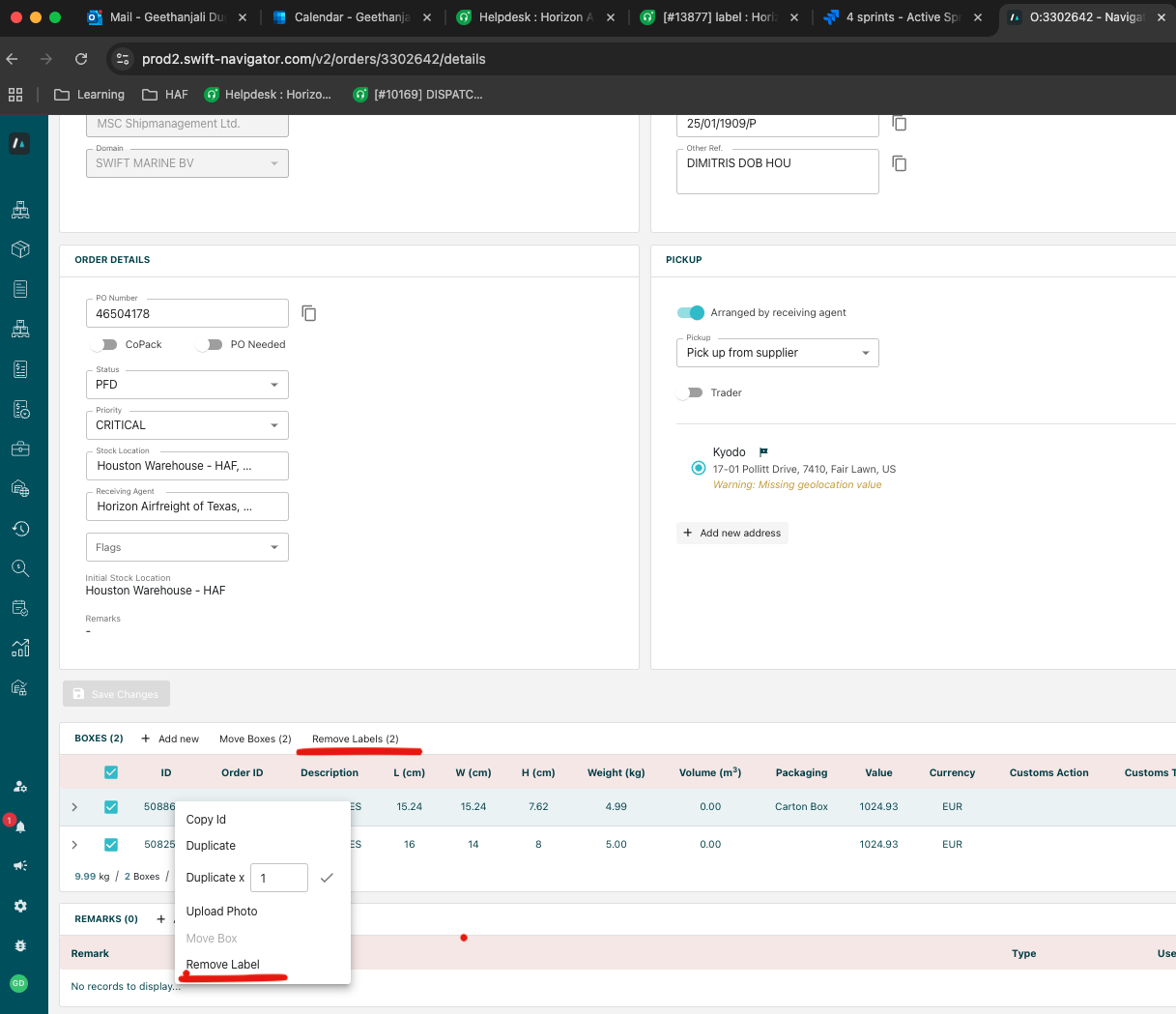
- Scroll down to box section, right click on the box id and delete box label.
- Note: you can select multiple boxes and delete box label using the button on top of the table "Remove Labels".
- If there is no box label to delete then you will see an appropriate message. No action required.
Was this article helpful?
That’s Great!
Thank you for your feedback
Sorry! We couldn't be helpful
Thank you for your feedback
Feedback sent
We appreciate your effort and will try to fix the article