  A repack box is a container that consolidates items from multiple orders into a single physical box. To unpack it and restore the original
  boxes:

  Option 1: From the Dispatch

  1. Open the dispatch (must be in DISP status)
  2. Go to the Picklist Progress tab
  3. Find the repack box in the list
  4. Click the Unpack button next to it

  Requires: Warehouse or Agent role, and you must be assigned to the dispatch's destination warehouse.

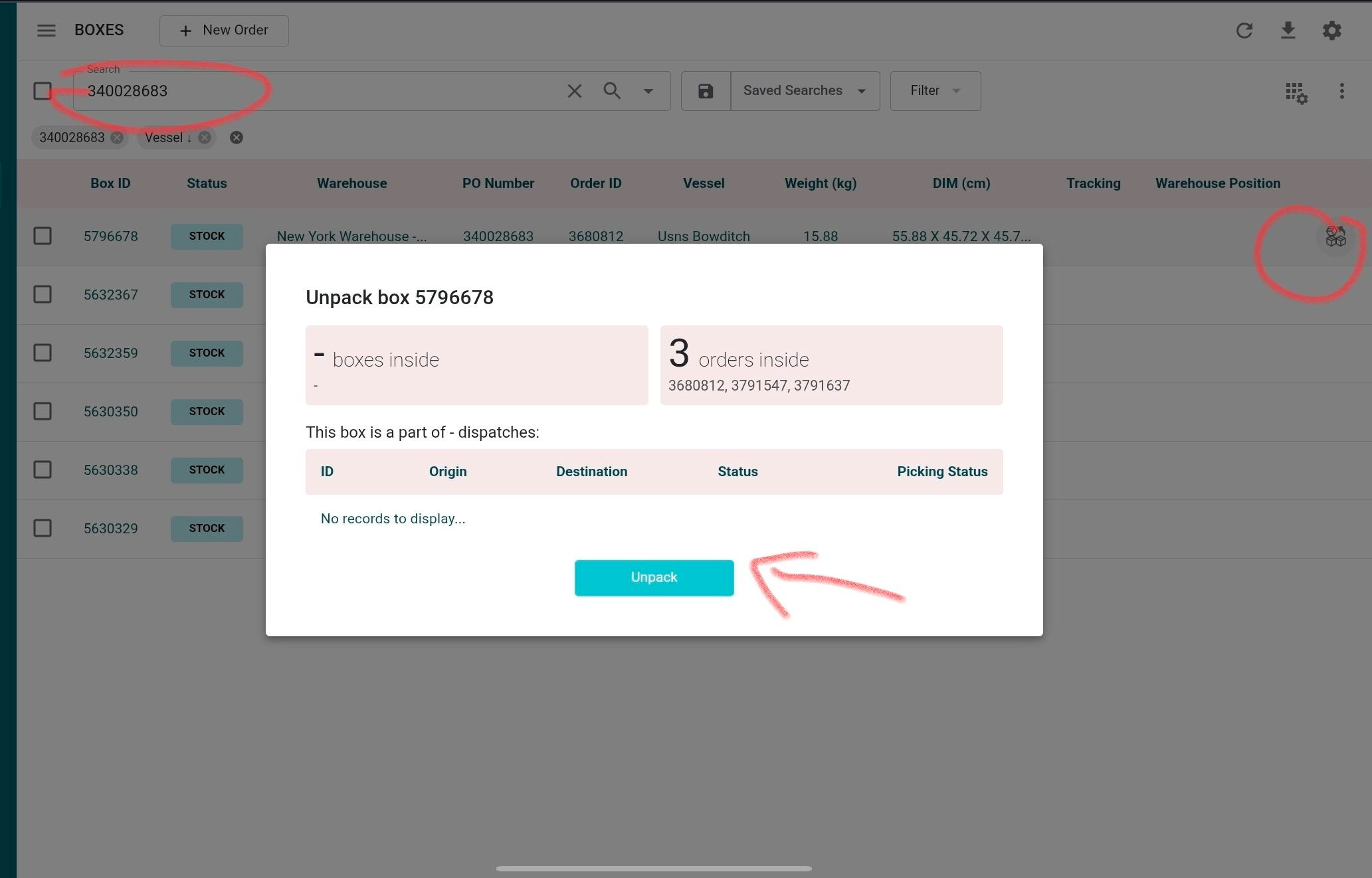
  Option 2: From the Boxes List

  1. Go to Boxes
  2. Find the repack box (marked as "REPACKED ITEMS")
  3. Click the Unpack action
  4. Review the child boxes in the confirmation modal
  5. Confirm to unpack

  Requires: Agent role.

  What Happens After Unpacking

  - The child boxes are removed from the repack container and appear individually in the dispatch
  - The repack box is deactivated (not deleted)
  - Each child box is re-assigned to the dispatch's active shipments

  Note: You cannot unpack a repack box that is nested inside another repack box. You must unpack the outer box first.
Was this article helpful?
That’s Great!
Thank you for your feedback
Sorry! We couldn't be helpful
Thank you for your feedback
Feedback sent
We appreciate your effort and will try to fix the article